🔐 API Keys Management
Securely manage your exchange API keys for automated trading
🔑 Add New API Key
Enter your exchange API credentials below
📝 Nickname (e.g., My BitMEX Account)
🔑 API Key
🔒 API Secret

ByBit Exchange
Add your ByBit API Key
Thank you! Please be patient....
This process can take up to 60 seconds to complete.
60 seconds
This process can take up to 60 seconds to complete.
60 seconds
Enabled
Exchange
Nickname
API Key
Edit
Delete
Loading your API Keys...
No API Keys Added Yet
Click on one of the exchange buttons above to add your first API Key and start trading!

API Key details DELETED successfully!
Edit API Key
API Key :
Nickname :
ByBit API Keys need to be created using the following sequence of steps
Login to the ByBit website on your Computer on the website as there is no option to
create API Keys on the ByBit App. You must use the ByBit website.
Please Note : You will need to set up a Sub Account to use ByBit on Auto Prophets.
The steps are easy, just follow the instructions below.
Important
You must create a New Sub Account on ByBit. Do not use an existing account. This ensures the Sub Account settings will work with the latest ByBit upgrades. Old Sub Account may need you to go through upgrades. Please work through each step below and ensure your screen looks the same as the screenshots provided.
Step 1. Once logged in, then put your mouse over the User Icon in the top right area and then click on Subaccount.

Step 2. and then in the top right corner click on "Create Subaccount".

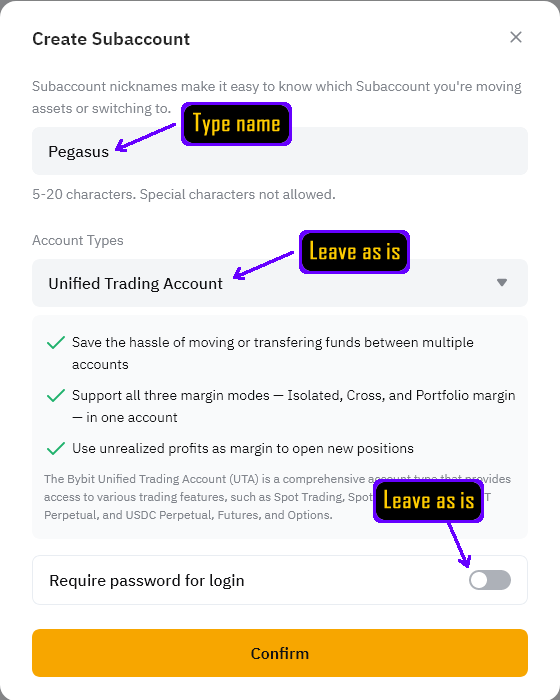
Step 3. Click on and choose Standard Sub Account.

Step 4. Enter a Name for the Sub Account and click on Confirm. The name can be anything but cannot have spaces or special characters, only alphabet and numbers.
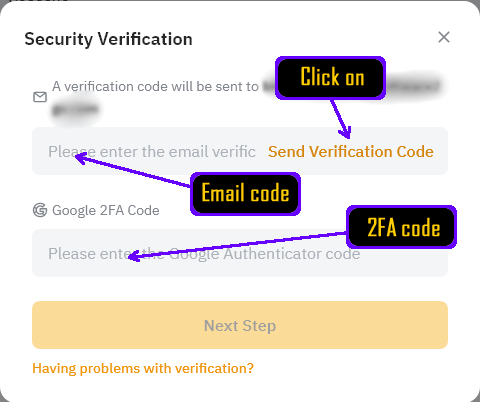
Step 5. Complete the email and 2FA verification process by clicking "Send Verification Code" to receive an email with a 6-digit code. Check your email inbox for the verification code from ByBit and enter the 6-digit email verification code along with your 2FA (Two-Factor Authentication) code from your authenticator app.
Step 6. Your sub account has been successfully created! You can see your newly created sub account in the list. Locate the "Management" button for your sub account and click on "Management" to access the sub account settings. This will allow you to create the API Key for this sub account.

Step 7. Click on "Create New Key" to start creating your API Key. You'll be presented with the API Key creation form.
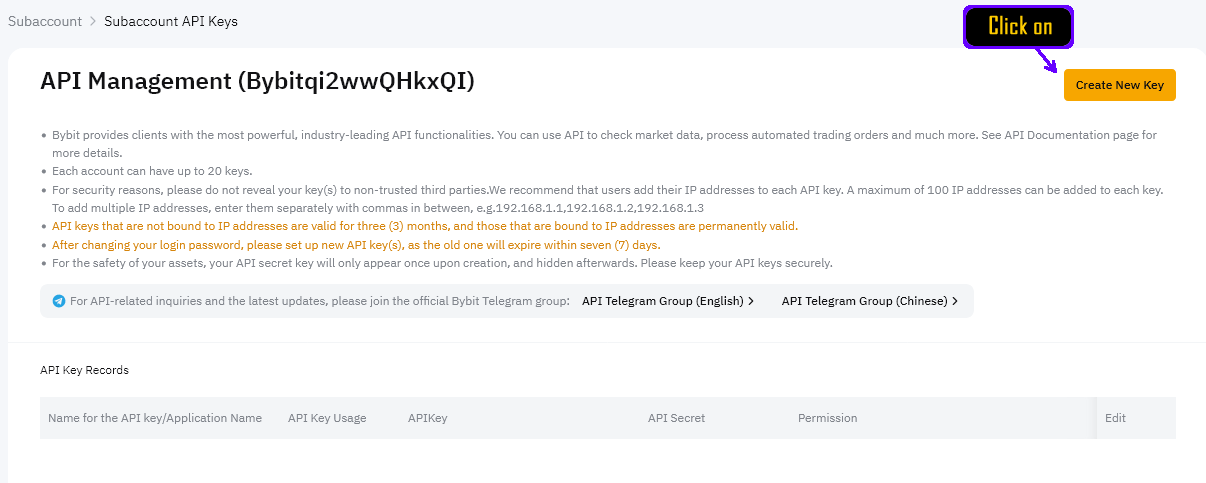
Choose the "System-generated" API Keys to continue.
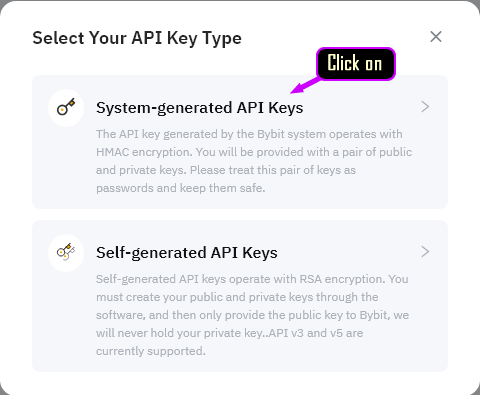
Step 8. Now you will see the area to enter the New API Key settings. See the settings in details listed below which when entered should look like the image below.
Enter Name for API Key as "Auto Prophets" or something like this for your records only.
Choose "Read-Write" API Key Permissions.
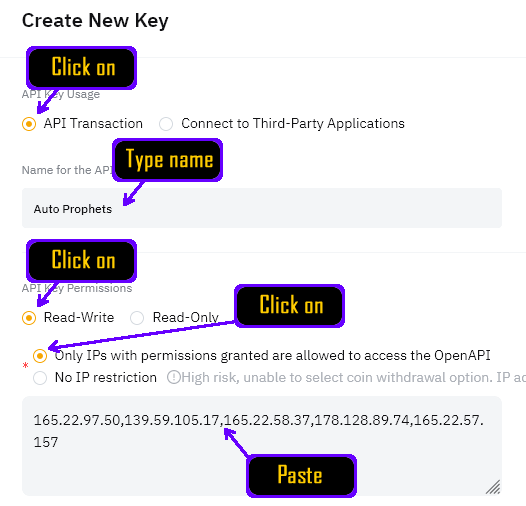
Choose "Only IPs with permissions granted...." option.
Copy n paste these IPs into the Trusted IPs area.
Once the IPs are pasted into the IPs area it should then accept the IPs and look like the image above.
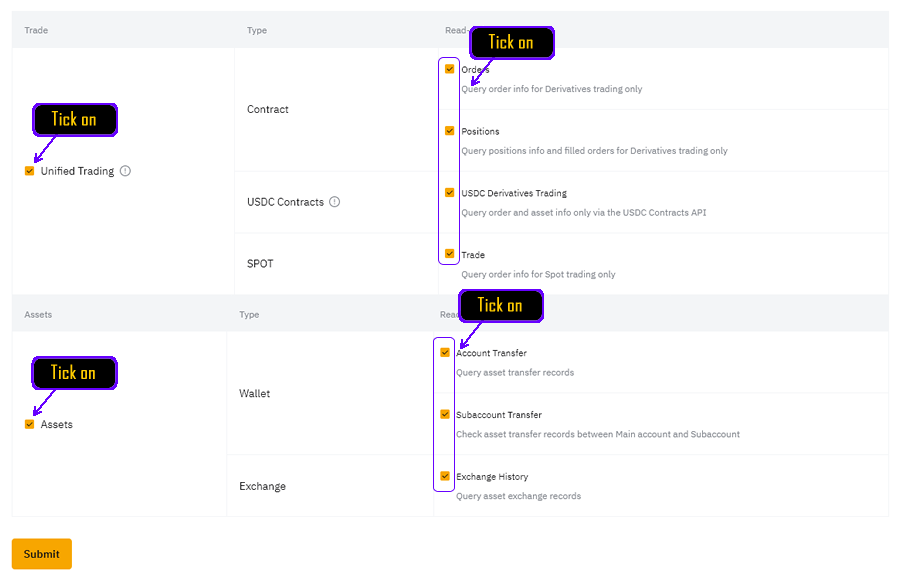
Step 9. Next, scroll down to where we need to make sure you tick on "Unified Trading" and "Assets". This should automatically tick all options for each one and it should look like the image below. If your screen shows "Withdrawal" then "untick" this. Every other permission is needed except Withdrawal.
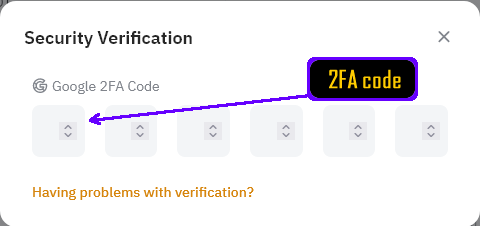
Step 10. After ensuring all the details and settings are correct, click on the Submit button to proceed. You will be now required to perform a Security Verification to complete the API Key creation. Enter your ByBit Main Account 2FA Code. Additionally, you may be required to have a Verification Code sent to your email and will need to copy this as well.
Step 11. You should see a screen like the image below and be able to Copy and Paste the API Key and API Secret into the Auto Prophets website below and complete adding the API Key to the Auto Prophets website by clicking on the "Add New API key" below. Please note: The API Secret is only shown this one time before you click on "Understood". So you must copy this now and paste below in the Auto Prophets website and then come back to Step 12 after.

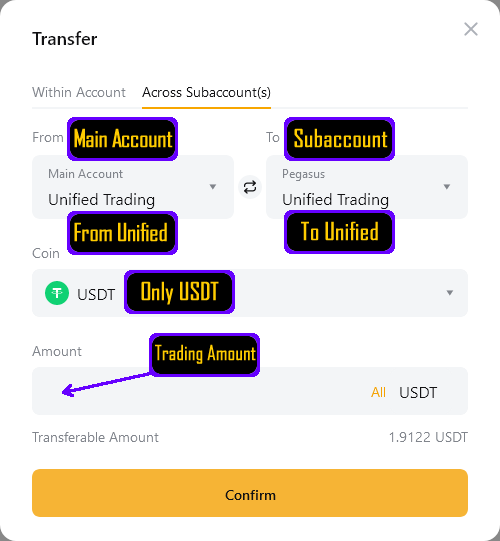
Step 12. Once you have completed the above, you will need to check that you have your Balance you want to use for Trading in your "Unified" Trading Account. If you transfer into the "Funding" account, then your Auto Prophets will not see this to be able to trade with. Ensure you only transfer USDT or USDC into "Unified Trading". Please note, when you first make a deposit to ByBit, you might find the deposit amount will be in your "Funding Account" and need to be "Transferred" into your "Unified Trading Account". Good luck, you are now ready! Click on "Angels" in the navigation at the top of the screen and then click on "Start New Angel" and you will be Flying in no time!

Binance API Keys need to be created using the following sequence of steps
Step 1. Enable 2 Factor Authentication. Go to the Security page in your Binance Account and ensure you have set up 2FA.
Step 2. Now find in the User Center -> "API Management" and then click on it.
Step 3. Now click on "Create API". You will then be asked a choice and need to choose "System Generated" to continue.
Step 4. Now give the API a Nickname (can be anything like Auto Prophets) and once you have added the Key, you will see in the top right area a button that says 'Edit Restrictions' that you will need to click on. Once you have clicked on this button, you will be able to enter the details below.
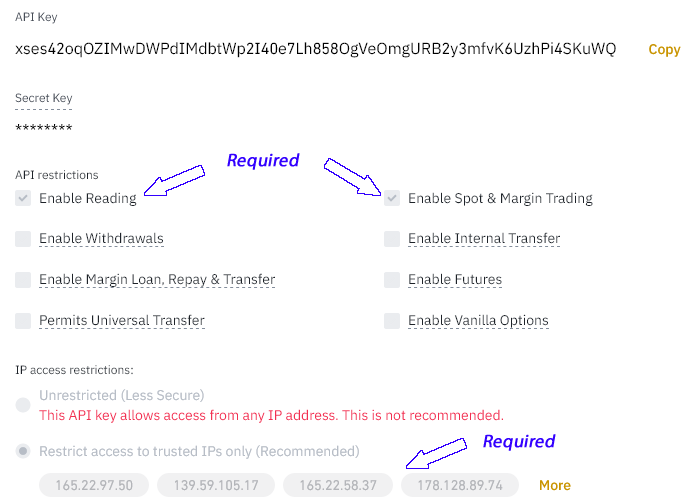
Step 5. Click on the option that says "Restrict Access to trusted IPs"
Click each IP address field to copy:
Once the IPs are pasted into the Trusted IPs area, click on the button "Confirm" and it should then accept the IPs.
Step 6. Make sure you tick on "Enable Reading" and "Enable Spot & Margin Trading"  (ticked)
Make sure Withdraw is Disabled (unticked)